How to Fix Keyboard Keys Typing Wrong Characters
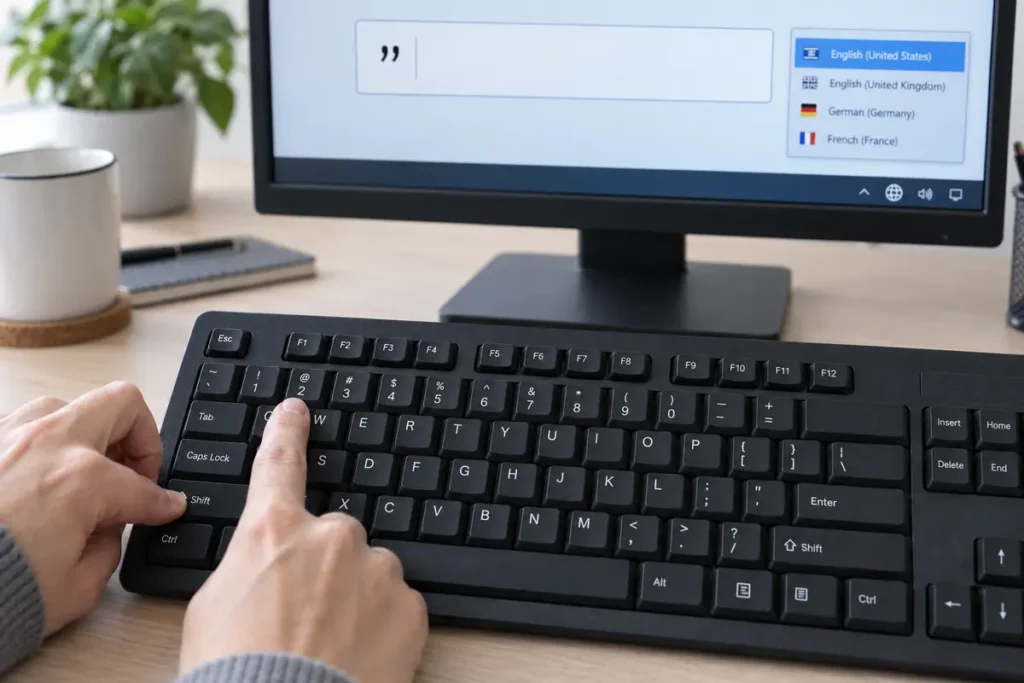
Is your keyboard typing the wrong characters even though you are pressing the correct keys? Perhaps Shift + 2 produces quotation marks instead of the @ symbol, the Y and Z keys appear to be reversed, or letter keys are entering numbers.
These problems can make a keyboard seem damaged, but the hardware is not always responsible. In many cases, the computer is using a keyboard layout that does not match the physical keyboard. A shortcut may have changed the input language without you noticing, or a setting such as Num Lock may be affecting certain keys.
This guide explains how to fix keyboard keys typing wrong characters on Windows and macOS. It also shows you how to determine whether the problem comes from your operating system, an application or the keyboard itself.
Start by Identifying the Type of Problem
Before changing your settings, open Notepad, TextEdit or another plain text field. Press the affected keys and look for a pattern.
If most letters work but symbols appear in the wrong places, the selected keyboard layout is probably incorrect. If Y produces Z and Z produces Y, a QWERTZ layout may be active. When letters on the right side of a laptop keyboard produce numbers, Num Lock may be turned on.
A problem involving only one key could have a different cause. Dirt, liquid damage, a faulty switch or key-remapping software may affect an individual key while the rest of the keyboard continues working normally.
You can also use our keyboard tester online to check whether each physical key is being detected. Press the problem key and compare its response with the other keys before moving to more advanced troubleshooting.
Check the Active Keyboard Layout
The first thing to check when a keyboard is typing wrong characters is the active language and layout.
A computer can support multiple input layouts at the same time. This is useful for multilingual users, but it also makes it easy to change layouts accidentally. The text printed on a physical key does not determine what appears on the screen. Your operating system interprets the key according to the currently selected layout.
One common example involves US and UK English keyboards:
- On a US keyboard,
Shift + 2normally types@. - On a UK keyboard,
Shift + 2normally types". - If Y and Z are reversed, a German QWERTZ layout may be selected.
Look at the language indicator in the Windows taskbar. Labels such as ENG US and ENG UK tell you which layout is currently active.
Switch the Keyboard Layout in Windows
Press Windows key + Spacebar to view the installed input languages. Continue pressing Spacebar while holding the Windows key until the layout matching your physical keyboard is selected.
You may also be able to switch layouts using Alt + Shift, depending on your Windows configuration. This shortcut can sometimes be pressed accidentally, which explains why a keyboard may suddenly begin entering different symbols.
After switching the layout, test the affected symbol and letter keys again. If the keyboard starts working correctly, remove any unused layouts to prevent the issue from returning.
Remove an Unwanted Layout in Windows 11
Open Settings, select Time & language, and then choose Language & region. Locate your preferred language and open its menu. Select Language options and review the layouts listed under Keyboards.
Remove any layout you do not use. Keep the layout that matches the physical key arrangement on your laptop or external keyboard.
For example, select a United States layout if @ is printed above the number 2. Select a United Kingdom layout if quotation marks are printed above that key.
Remove an Unwanted Layout in Windows 10
Open Settings and go to Time & Language. Select Language, choose your preferred language and open Options.
Review the installed keyboards and remove the incorrect layout. Restart the affected application and test your keyboard again.
You normally do not need to change the complete Windows display language. The display language controls menus and interface text, while the keyboard layout determines what your keys type.
Correct the Input Source on a Mac
A Mac can also switch between multiple input sources. If the wrong source is active, the characters on the screen may not match the symbols printed on your keyboard.
Open System Settings, select Keyboard, and find the Text Input section. Choose Edit to view your input sources. Select the layout that matches your physical keyboard and remove any unwanted options.
You can usually use the Control + Spacebar shortcut to move between available input sources. Some Mac keyboards also use the Globe key for this function.
If the issue occurs in only one application, close and reopen that application after changing the input source.
Turn Off Num Lock on a Laptop
Some compact laptop keyboards do not include a separate number pad. Instead, a group of letter keys can work as numbers when Num Lock is enabled.
If keys such as U, I, O, J, K, L or M are typing numbers, press the Num Lock key and test them again. Depending on the laptop, you may need to press Fn + Num Lock, Fn + F11 or another manufacturer-specific shortcut.
Look for a small lock symbol or the words “NumLk” on the function-key row. The exact combination varies between Dell, HP, Lenovo, Acer, ASUS and other laptop models.
Check Shift, Ctrl, Alt and Fn Keys
A modifier key that remains physically or electronically active can change what other keys do.
Press and release the left and right Shift, Ctrl and Alt keys a few times. On a laptop, do the same with the Fn key. Check whether any key feels stuck, unusually soft or difficult to press.
Open the on-screen keyboard in Windows and watch the modifier keys while using your physical keyboard. If Shift, Ctrl or Alt appears highlighted when you are not pressing it, the key may be stuck or the keyboard may be sending an unintended input.
Carefully clean around the affected key with compressed air. Do not pour liquid cleaner directly onto the keyboard.
Review Accessibility Keyboard Settings
Windows accessibility features are helpful when intentionally enabled, but an accidental shortcut can change how the keyboard responds.
Go to Settings, open Accessibility, and select Keyboard. Check Sticky Keys, Filter Keys and Toggle Keys. Turn off any feature you do not use.
Sticky Keys keeps modifier keys active for keyboard combinations. Filter Keys can ignore brief or repeated keystrokes. These settings do not usually replace one character with another, but they can make the keyboard feel inconsistent or cause shortcuts to behave unexpectedly.
Check Whether the Problem Affects Every Application
Test the keyboard in at least two different places, such as Notepad and your web browser.
If the keyboard typing wrong characters problem occurs in only one program, inspect that program’s language, shortcut and input settings. Writing applications, remote-desktop software, games and virtual machines may use their own keyboard configuration.
Disable browser extensions temporarily if the issue happens only inside a browser. Also close macro programs, keyboard customisation utilities and gaming software that can reassign keys.
If the problem occurs in every application, continue troubleshooting at the operating-system and hardware levels.
Reconnect or Restart the Keyboard
For a USB keyboard, disconnect it and connect it to another USB port. Avoid using a hub while testing because the hub may introduce its own connection issue.
For a wireless keyboard, replace or recharge the batteries and reconnect the USB receiver. If it uses Bluetooth, remove the keyboard from your paired devices and pair it again.
Restart the computer after reconnecting it. A restart can clear a temporary input-service or driver problem that would otherwise continue affecting the keyboard.
Reinstall the Keyboard Device in Windows
A damaged or incorrectly loaded keyboard driver can cause unusual input, although layout settings are a more common explanation for wrong symbols.
Right-click the Start button and open Device Manager. Expand Keyboards, right-click the relevant keyboard and select Uninstall device. Restart the computer so Windows can detect the keyboard and reinstall the necessary device support.
You should also check Windows Update for available system and optional driver updates. If the issue began immediately after an update, review the device properties to see whether a driver rollback is available.
Look for Key Remapping and Macro Software
Keyboard-management tools can change the output of individual keys. Gaming utilities, automation programs and key-remapping applications may continue running in the background after a custom profile has been created.
Open the system tray and Task Manager to check for keyboard, gaming or macro software. Disable custom profiles temporarily and return the key assignments to their defaults.
If one letter always produces an unrelated character while the language layout is correct, key remapping deserves particular attention.
Determine Whether the Keyboard Has a Hardware Problem
Connect a different keyboard to the same computer. If the second keyboard works correctly, the original keyboard may have a physical fault.
You can also connect the affected external keyboard to another computer. If it produces the same wrong or repeated characters there, the problem is likely inside the keyboard.
Liquid spills, debris, worn switches and damaged circuitry can make one key activate another. A key that enters multiple characters at once is also more likely to have a hardware or electrical problem than a language-layout issue.
Laptop keyboard replacement often requires opening the device. If cleaning and software troubleshooting do not help, ask a qualified repair technician to inspect it.
Test Your Typing After Fixing the Keyboard
Once every key produces the expected character, type a few complete sentences. This helps confirm that letters, numbers, punctuation and modifier combinations are all working correctly.
You can then take our online typing test to check your WPM and accuracy. A normal typing passage is useful after troubleshooting because it tests natural key combinations rather than a single key at a time.
Frequently Asked Questions
Why is my keyboard typing the wrong characters?
The most common reason is that the selected keyboard layout does not match the physical keyboard. Num Lock, key-remapping software, accessibility settings, a stuck modifier key or hardware damage can also produce unexpected input.
How do I fix keyboard keys typing wrong characters?
Start by pressing Windows key + Spacebar and selecting the correct layout. Remove unwanted input languages, turn off Num Lock, check for stuck modifier keys and test the keyboard in another application. If the problem remains, reconnect the keyboard and reinstall it through Device Manager.
Why does Shift + 2 type quotation marks instead of the @ symbol?
Your computer is probably using a UK keyboard layout. On a standard UK layout, Shift + 2 types quotation marks. Select a US layout if the @ symbol is printed above the number 2 on your physical keyboard.
Why are the Y and Z keys reversed?
A QWERTZ layout, commonly associated with German-language keyboards, may be active. Switch to the correct QWERTY layout through your operating system’s language and keyboard settings.
Why is my laptop keyboard typing numbers instead of letters?
Num Lock may be activating an embedded number pad. Press Num Lock or use the appropriate Fn-key combination for your laptop model.
Why does one key type a completely different letter?
If only one key is affected and the keyboard layout is correct, check for key-remapping software, dirt, liquid damage or a faulty key switch. Test the key with an online keyboard tester and compare the keyboard on another device.
Can malware make a keyboard type wrong characters?
It is possible, but incorrect layouts, stuck keys, remapping software and hardware faults are more common. Run a trusted security scan if the problem appears alongside pop-ups, unknown software or other unusual system behaviour.
Do I need to replace my keyboard?
Not necessarily. Try the software and layout fixes first. Replacement may be required if the keyboard shows the same problem on another computer or if it has suffered liquid, impact or circuit damage.
2 Responses