300+ Keyboard Shortcut Keys for Windows, Mac & Apps
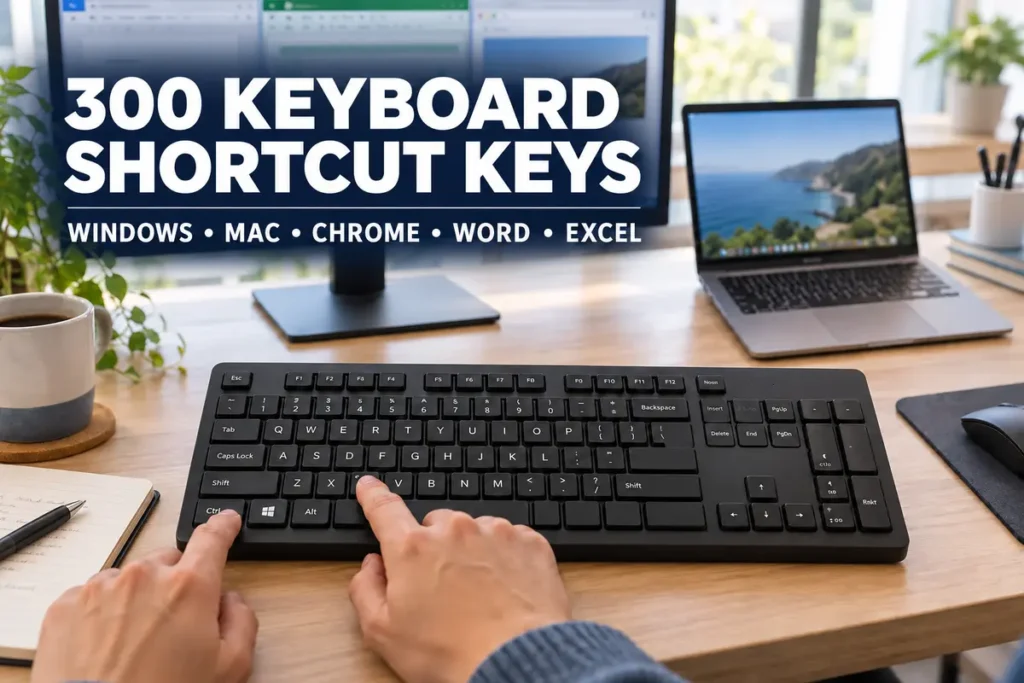
300 Keyboard Shortcut Keys for Windows, Mac and Popular Apps
Keyboard shortcut keys help you complete everyday computer tasks without repeatedly reaching for a mouse. A shortcut can open an application, switch between windows, format text, manage files or perform an action that would normally require several clicks.
This guide includes 300 useful keyboard shortcuts for Windows, macOS, Google Chrome, Microsoft Word, Microsoft Excel and Google Docs. The shortcuts are organised by platform and application so you can quickly find the combination you need.
You do not need to memorise the entire list. Start with the shortcuts related to tasks you perform regularly. Once those combinations become part of your routine, return to this guide and learn a few more.
What Is a Keyboard Shortcut?
A keyboard shortcut is a single key or combination of keys that performs a specific command. For example, Ctrl + C copies selected content on Windows, while Command + C performs the same action on a Mac.
Most shortcuts use one or more modifier keys:
- Ctrl: Used in many Windows and application commands.
- Alt: Used for menus, navigation and alternative commands.
- Shift: Changes a key’s function or extends a selection.
- Windows key: Opens Windows features and system tools.
- Command: The primary shortcut modifier on a Mac.
- Option: The macOS equivalent of many Alt-based functions.
- Fn: Activates alternative functions on laptops and compact keyboards.
If a shortcut does not respond, use our keyboard tester online to confirm that every required key is being detected.
Part 1: Windows and macOS Shortcuts
Essential Text Editing and General Shortcuts
| No. | Shortcut | Action |
|---|---|---|
| 1 | Ctrl + A | Select all available text or items |
| 2 | Ctrl + C | Copy selected content |
| 3 | Ctrl + X | Cut selected content |
| 4 | Ctrl + V | Paste copied or cut content |
| 5 | Shift + Insert | Paste the latest clipboard item |
| 6 | Ctrl + Z | Undo the previous action |
| 7 | Ctrl + Y | Redo an action |
| 8 | Ctrl + F | Find text or an item |
| 9 | Ctrl + H | Open Find and Replace in supported apps |
| 10 | Ctrl + B | Make selected text bold |
| 11 | Ctrl + I | Italicise selected text |
| 12 | Ctrl + U | Underline selected text |
| 13 | Ctrl + S | Save the current file |
| 14 | Ctrl + P | Open the print window |
| 15 | Ctrl + N | Create a new file or window |
| 16 | Ctrl + O | Open an existing file |
| 17 | Ctrl + W | Close the active document or tab |
| 18 | Alt + F4 | Close the active application |
| 19 | Ctrl + Backspace | Delete the previous word |
| 20 | Ctrl + Delete | Delete the next word |
| 21 | Home | Move to the beginning of the line |
| 22 | End | Move to the end of the line |
| 23 | Ctrl + Home | Move to the beginning of a document |
| 24 | Ctrl + End | Move to the end of a document |
| 25 | Shift + Arrow key | Extend the selection in that direction |
| 26 | Ctrl + Left Arrow | Move to the previous word |
| 27 | Ctrl + Right Arrow | Move to the next word |
| 28 | Ctrl + Up Arrow | Move to the previous paragraph |
| 29 | Ctrl + Down Arrow | Move to the next paragraph |
| 30 | Ctrl + Shift + V | Paste as plain text in supported apps |
Windows 10 and Windows 11 Shortcut Keys
| No. | Shortcut | Action |
|---|---|---|
| 31 | Windows key | Open or close the Start menu |
| 32 | Windows + A | Open Quick Settings or Action Center |
| 33 | Windows + D | Display or hide the desktop |
| 34 | Windows + E | Open File Explorer |
| 35 | Windows + I | Open Windows Settings |
| 36 | Windows + L | Lock the computer |
| 37 | Windows + M | Minimise all open windows |
| 38 | Windows + Shift + M | Restore minimised windows |
| 39 | Windows + R | Open the Run dialog |
| 40 | Windows + S | Open Windows Search |
| 41 | Windows + V | Open clipboard history |
| 42 | Windows + X | Open the Quick Link menu |
| 43 | Windows + Z | Open Snap Layouts |
| 44 | Windows + Tab | Open Task View |
| 45 | Windows + Ctrl + D | Create a new virtual desktop |
| 46 | Windows + Ctrl + Right Arrow | Move to the desktop on the right |
| 47 | Windows + Ctrl + Left Arrow | Move to the desktop on the left |
| 48 | Windows + Ctrl + F4 | Close the current virtual desktop |
| 49 | Windows + Left Arrow | Snap the window to the left |
| 50 | Windows + Right Arrow | Snap the window to the right |
| 51 | Windows + Up Arrow | Maximise the active window |
| 52 | Windows + Down Arrow | Restore or minimise the window |
| 53 | Windows + Shift + Left Arrow | Move the window to the left monitor |
| 54 | Windows + Shift + Right Arrow | Move the window to the right monitor |
| 55 | Windows + Home | Minimise all windows except the active one |
| 56 | Windows + P | Choose a projection mode |
| 57 | Windows + K | Open Cast from Quick Settings |
| 58 | Windows + N | Open notifications and calendar |
| 59 | Windows + W | Open Widgets |
| 60 | Windows + H | Start voice typing |
| 61 | Windows + Period (.) | Open the emoji and symbols panel |
| 62 | Windows + Spacebar | Move forward through keyboard layouts |
| 63 | Windows + Shift + Spacebar | Move backward through keyboard layouts |
| 64 | Windows + U | Open Accessibility settings |
| 65 | Windows + G | Open Xbox Game Bar |
| 66 | Windows + Alt + R | Start or stop Game Bar recording |
| 67 | Windows + Alt + Print Screen | Capture the active game or app |
| 68 | Windows + Print Screen | Save a full-screen screenshot |
| 69 | Windows + Shift + S | Capture a selected screen area |
| 70 | Alt + Print Screen | Copy a screenshot of the active window |
| 71 | Print Screen | Capture the screen or open screen snipping |
| 72 | Ctrl + Shift + Esc | Open Task Manager |
| 73 | Ctrl + Alt + Delete | Open the Windows security screen |
| 74 | Alt + Tab | Switch between open applications |
| 75 | Ctrl + Alt + Tab | Keep the application switcher open |
| 76 | Alt + Esc | Cycle through windows in opening order |
| 77 | Alt + Spacebar | Open the active window menu |
| 78 | F5 | Refresh the active window |
| 79 | F6 | Cycle through window elements |
| 80 | Shift + F10 | Open the selected item’s context menu |
| 81 | Windows + Ctrl + Enter | Start Narrator |
| 82 | Windows + Plus (+) | Start Magnifier and zoom in |
| 83 | Windows + Minus (-) | Zoom out with Magnifier |
| 84 | Windows + Esc | Close Magnifier |
| 85 | Windows + Ctrl + C | Turn colour filters on or off |
| 86 | Windows + Ctrl + Shift + B | Wake the display or reset graphics |
| 87 | Windows + O | Lock the device orientation |
| 88 | Windows + Q | Open Windows Search |
| 89 | Windows + B | Focus the taskbar notification area |
| 90 | Windows + T | Cycle through taskbar applications |
File Explorer and Windows Dialog Shortcuts
| No. | Shortcut | Action |
|---|---|---|
| 91 | Alt + D | Select the address bar |
| 92 | Ctrl + L | Focus the address bar |
| 93 | Ctrl + E | Select the search box |
| 94 | Ctrl + F | Search the current folder |
| 95 | Ctrl + N | Open a new File Explorer window |
| 96 | Ctrl + T | Open a new File Explorer tab |
| 97 | Ctrl + W | Close the active tab or window |
| 98 | Ctrl + Tab | Move to the next tab |
| 99 | Ctrl + Shift + Tab | Move to the previous tab |
| 100 | Ctrl + 1–9 | Open the corresponding tab number |
| 101 | Ctrl + Shift + N | Create a new folder |
| 102 | F2 | Rename the selected item |
| 103 | F3 | Search for a file or folder |
| 104 | F4 | Select the address bar path |
| 105 | Alt + Enter | Open properties for the selected item |
| 106 | Alt + P | Show or hide the preview pane |
| 107 | Alt + Shift + P | Show or hide the details pane |
| 108 | Alt + Left Arrow | Return to the previous folder |
| 109 | Alt + Right Arrow | Move to the next folder |
| 110 | Alt + Up Arrow | Open the parent folder |
| 111 | Backspace | Return to the previous folder |
| 112 | Delete | Move an item to the Recycle Bin |
| 113 | Shift + Delete | Permanently delete an item |
| 114 | Ctrl + D | Move an item to the Recycle Bin |
| 115 | Ctrl + Drag | Copy an item to the destination |
| 116 | Shift + Drag | Move an item to the destination |
| 117 | Alt + Drag | Create a shortcut to an item |
| 118 | Ctrl + Mouse Wheel | Change file and folder icon size |
| 119 | Ctrl + Plus (+) | Resize columns to fit their contents |
| 120 | Ctrl + Shift + E | Expand folders in the navigation tree |
| 121 | Right Arrow | Expand a folder |
| 122 | Left Arrow | Collapse a folder |
| 123 | End | Scroll to the bottom |
| 124 | Home | Scroll to the top |
| 125 | Shift + Arrow key | Select adjacent items |
| 126 | Ctrl + Arrow + Spacebar | Select separate individual items |
| 127 | Enter | Open the selected item |
| 128 | Esc | Cancel the current operation |
| 129 | F11 | Maximise or restore File Explorer |
| 130 | Ctrl + Shift + 6 | Switch to Details view |
macOS Keyboard Shortcut Keys
| No. | Shortcut | Action |
|---|---|---|
| 131 | Command + C | Copy the selected item |
| 132 | Command + X | Cut selected content |
| 133 | Command + V | Paste clipboard contents |
| 134 | Command + Z | Undo the previous action |
| 135 | Shift + Command + Z | Redo the previous action |
| 136 | Command + A | Select all items |
| 137 | Command + F | Find content |
| 138 | Command + G | Find the next matching result |
| 139 | Shift + Command + G | Find the previous result |
| 140 | Command + S | Save the current document |
| 141 | Command + P | Print the current document |
| 142 | Command + N | Open a new document or window |
| 143 | Command + O | Open the selected item |
| 144 | Command + W | Close the active window |
| 145 | Command + Q | Quit the active application |
| 146 | Command + M | Minimise the active window |
| 147 | Command + H | Hide the active application |
| 148 | Option + Command + H | Hide other applications |
| 149 | Command + Tab | Switch between open applications |
| 150 | Command + Grave Accent (\)` | Switch between windows of one app |
| 151 | Option + Command + Esc | Open Force Quit |
| 152 | Control + Command + Q | Lock the Mac |
| 153 | Shift + Command + 3 | Capture the entire screen |
| 154 | Shift + Command + 4 | Capture a selected screen area |
| 155 | Shift + Command + 5 | Open screenshot and recording controls |
| 156 | Spacebar | Preview the selected Finder item |
| 157 | Command + Spacebar | Open Spotlight Search |
| 158 | Control + Command + Spacebar | Open Character Viewer |
| 159 | Command + Comma (,) | Open application settings |
| 160 | Command + Delete | Move an item to Trash |
| 161 | Shift + Command + Delete | Empty the Trash |
| 162 | Option + Shift + Command + Delete | Empty Trash without confirmation |
| 163 | Command + I | Show information for an item |
| 164 | Command + D | Duplicate the selected item |
| 165 | Command + R | Show the original file for an alias |
| 166 | Command + E | Eject a disk or volume |
| 167 | Command + Up Arrow | Open the containing folder |
| 168 | Command + Down Arrow | Open the selected item |
| 169 | Command + Left Bracket ([) | Return to the previous location |
| 170 | Command + Right Bracket (]) | Move to the next location |
| 171 | Shift + Command + N | Create a new folder |
| 172 | Option + Command + N | Create a Smart Folder |
| 173 | Command + 1 | View Finder items as icons |
| 174 | Command + 2 | View Finder items as a list |
| 175 | Command + 3 | View Finder items in columns |
| 176 | Command + 4 | View Finder items in a gallery |
| 177 | Command + J | Open Finder view options |
| 178 | Command + K | Open Connect to Server |
| 179 | Shift + Command + G | Open Go to Folder |
| 180 | Shift + Command + H | Open the Home folder |
| 181 | Shift + Command + D | Open the Desktop folder |
| 182 | Shift + Command + O | Open the Documents folder |
| 183 | Shift + Command + U | Open the Utilities folder |
| 184 | Option + Command + L | Open the Downloads folder |
| 185 | Fn + Delete | Forward-delete the next character |
Part 2: Browser and Productivity App Shortcuts
Google Chrome Keyboard Shortcuts
These combinations apply primarily to Chrome on Windows and Linux. Mac users generally use Command instead of Ctrl for common commands.
| No. | Shortcut | Action |
|---|---|---|
| 186 | Ctrl + N | Open a new browser window |
| 187 | Ctrl + Shift + N | Open a new Incognito window |
| 188 | Ctrl + T | Open a new tab |
| 189 | Ctrl + Shift + T | Reopen the last closed tab |
| 190 | Ctrl + W | Close the current tab |
| 191 | Ctrl + Shift + W | Close the browser window |
| 192 | Ctrl + Tab | Move to the next tab |
| 193 | Ctrl + Shift + Tab | Move to the previous tab |
| 194 | Ctrl + 1–8 | Open a specific numbered tab |
| 195 | Ctrl + 9 | Open the last tab |
| 196 | Alt + Home | Open the homepage |
| 197 | Alt + Left Arrow | Open the previous page |
| 198 | Alt + Right Arrow | Open the next page |
| 199 | Ctrl + L | Select the address bar |
| 200 | Ctrl + K | Search from the address bar |
| 201 | Ctrl + Enter | Add “www.” and “.com” where supported |
| 202 | Ctrl + R | Reload the current page |
| 203 | Ctrl + Shift + R | Reload without cached content |
| 204 | Esc | Stop the page from loading |
| 205 | Ctrl + D | Bookmark the current page |
| 206 | Ctrl + Shift + D | Bookmark all open tabs |
| 207 | Ctrl + H | Open browsing history |
| 208 | Ctrl + J | Open Downloads |
| 209 | Shift + Esc | Open Chrome Task Manager |
| 210 | Ctrl + Shift + B | Show or hide the bookmarks bar |
| 211 | Ctrl + Shift + O | Open Bookmark Manager |
| 212 | Ctrl + U | Display the page source |
| 213 | Ctrl + F | Find text on the page |
| 214 | Ctrl + G | Move to the next matching result |
| 215 | Ctrl + Shift + G | Move to the previous result |
| 216 | Ctrl + P | Print the current page |
| 217 | Ctrl + S | Save the current page |
| 218 | Ctrl + Plus (+) | Zoom in |
| 219 | Ctrl + Minus (-) | Zoom out |
| 220 | Ctrl + 0 | Reset page zoom |
| 221 | F11 | Enter or exit full-screen mode |
| 222 | Ctrl + Shift + Delete | Open Clear Browsing Data |
| 223 | F6 | Move focus to the next browser area |
| 224 | Spacebar | Scroll down one screen |
| 225 | Shift + Spacebar | Scroll up one screen |
Microsoft Word Keyboard Shortcuts
| No. | Shortcut | Action |
|---|---|---|
| 226 | Ctrl + Alt + 1 | Apply Heading 1 |
| 227 | Ctrl + Alt + 2 | Apply Heading 2 |
| 228 | Ctrl + Alt + 3 | Apply Heading 3 |
| 229 | Ctrl + Shift + N | Apply the Normal style |
| 230 | Ctrl + M | Increase paragraph indent |
| 231 | Ctrl + Shift + M | Decrease paragraph indent |
| 232 | Ctrl + T | Create a hanging indent |
| 233 | Ctrl + Shift + T | Reduce a hanging indent |
| 234 | Ctrl + E | Centre the paragraph |
| 235 | Ctrl + L | Align the paragraph left |
| 236 | Ctrl + R | Align the paragraph right |
| 237 | Ctrl + J | Justify the paragraph |
| 238 | Ctrl + 1 | Apply single-line spacing |
| 239 | Ctrl + 2 | Apply double-line spacing |
| 240 | Ctrl + 5 | Apply 1.5-line spacing |
| 241 | Ctrl + Shift + L | Apply a bulleted list |
| 242 | Ctrl + Enter | Insert a page break |
| 243 | Shift + Enter | Insert a line break |
| 244 | Ctrl + Alt + M | Add a comment |
| 245 | Ctrl + Shift + E | Turn Track Changes on or off |
| 246 | Ctrl + K | Insert a hyperlink |
| 247 | Ctrl + Shift + C | Copy text formatting |
| 248 | Ctrl + Shift + V | Paste copied formatting |
| 249 | Shift + F3 | Change selected text case |
| 250 | Ctrl + D | Open the Font dialog |
| 251 | Ctrl + Shift + Greater Than (>) | Increase font size |
| 252 | Ctrl + Shift + Less Than (<) | Decrease font size |
| 253 | Ctrl + Right Bracket (]) | Increase font by one point |
| 254 | Ctrl + Left Bracket ([) | Decrease font by one point |
| 255 | F7 | Start spelling and grammar check |
Microsoft Excel Keyboard Shortcuts
| No. | Shortcut | Action |
|---|---|---|
| 256 | F2 | Edit the active cell |
| 257 | Alt + Equals (=) | Insert an AutoSum formula |
| 258 | Ctrl + Semicolon (;) | Enter the current date |
| 259 | Ctrl + Shift + Semicolon (;) | Enter the current time |
| 260 | Ctrl + Grave Accent (\)` | Show or hide formulas |
| 261 | Ctrl + 1 | Open Format Cells |
| 262 | Ctrl + Spacebar | Select the entire column |
| 263 | Shift + Spacebar | Select the entire row |
| 264 | Ctrl + 9 | Hide selected rows |
| 265 | Ctrl + Shift + 9 | Unhide rows |
| 266 | Ctrl + Minus (-) | Open the Delete dialog |
| 267 | Ctrl + Plus (+) | Open the Insert dialog |
| 268 | Ctrl + D | Fill cells downward |
| 269 | Ctrl + R | Fill cells to the right |
| 270 | Ctrl + Enter | Enter the same data in selected cells |
| 271 | Alt + Enter | Start a new line inside a cell |
| 272 | Ctrl + Page Up | Open the previous worksheet |
| 273 | Ctrl + Page Down | Open the next worksheet |
| 274 | Shift + F11 | Insert a new worksheet |
| 275 | Ctrl + Arrow key | Move to the edge of a data region |
| 276 | Ctrl + Shift + Arrow key | Select to the data-region edge |
| 277 | Ctrl + Home | Move to the beginning of the sheet |
| 278 | Ctrl + End | Move to the last used cell |
| 279 | Ctrl + Shift + L | Turn filters on or off |
| 280 | Ctrl + T | Create a table |
| 281 | Ctrl + K | Insert a hyperlink |
| 282 | F4 | Repeat an action or cycle references |
| 283 | Ctrl + Apostrophe (') | Copy the formula from above |
| 284 | Ctrl + Shift + Quotation Mark (") | Copy the value from above |
| 285 | Ctrl + 5 | Apply or remove strikethrough |
Google Docs Keyboard Shortcuts
These Google Docs shortcuts apply to Windows and ChromeOS.
| No. | Shortcut | Action |
|---|---|---|
| 286 | Ctrl + Alt + M | Add a comment |
| 287 | Ctrl + Alt + 1 | Apply Heading 1 |
| 288 | Ctrl + Alt + 2 | Apply Heading 2 |
| 289 | Ctrl + Alt + 3 | Apply Heading 3 |
| 290 | Ctrl + Shift + 7 | Create a numbered list |
| 291 | Ctrl + Shift + 8 | Create a bulleted list |
| 292 | Ctrl + Alt + C | Copy text formatting |
| 293 | Ctrl + Alt + V | Paste copied formatting |
| 294 | Ctrl + Backslash (\) | Clear text formatting |
| 295 | Ctrl + Shift + E | Centre-align the paragraph |
| 296 | Ctrl + Shift + L | Left-align the paragraph |
| 297 | Ctrl + Shift + R | Right-align the paragraph |
| 298 | Ctrl + Shift + J | Justify the paragraph |
| 299 | Ctrl + Shift + C | Display the word count |
| 300 | Ctrl + Shift + V | Paste without formatting |
How to Learn Keyboard Shortcuts Faster
Trying to memorise all 300 shortcuts at once is unlikely to help. Begin with five combinations that remove repetitive steps from your normal routine.
If you regularly write documents, start with copy, paste, undo, find and save. If you manage files, practise opening File Explorer, creating folders and renaming items. Spreadsheet users may receive more immediate value from AutoSum, Format Cells and worksheet navigation shortcuts.
Keep the relevant section of this guide open while you work. Each time you perform a familiar action with a mouse, check whether a shortcut is available. Repeating the command in a real situation makes it easier to remember than reading the combination by itself.
Accuracy matters as much as speed. If you want to become more comfortable with different key positions, use our online typing test to practise controlled keyboard input and measure your WPM.
Why Is a Keyboard Shortcut Not Working?
A shortcut may fail because the active application uses a different command, one of the required keys is not registering or another program has intercepted the combination.
Laptop keyboards may require the Fn key to access certain function keys. Keyboard layouts can also change the position or behaviour of punctuation and symbol keys. If the characters on your screen do not match the keys you press, read our guide on how to fix keyboard keys typing wrong characters.
Some shortcuts are limited to a particular operating system or application version. Always check the platform listed with the command before assuming there is a keyboard fault.
Frequently Asked Questions
What are keyboard shortcut keys?
Keyboard shortcut keys are individual keys or key combinations that activate commands without requiring mouse navigation. They can edit text, open programs, navigate interfaces and control system features.
What are the most useful keyboard shortcuts?
Copy, paste, cut, undo, save, find and switch-window shortcuts are useful for most computer users. On Windows, these include Ctrl + C, Ctrl + V, Ctrl + X, Ctrl + Z, Ctrl + S, Ctrl + F and Alt + Tab.
Are Windows and Mac keyboard shortcuts the same?
Many actions are similar, but their modifier keys are different. Windows commonly uses Ctrl, whereas macOS usually uses Command. System-level commands can also differ.
Can I use Windows shortcuts on a laptop?
Yes. Most Windows shortcuts work on laptops. However, some function, navigation and number-pad commands may require the Fn key.
Why does the Windows key not work?
The key may be disabled by gaming mode, keyboard-management software or a physical fault. Check whether your keyboard has a Win Lock or gaming-mode control.
Do keyboard shortcuts work in every application?
No. Some combinations are broadly supported, while others belong to a specific operating system or program. An application can override a default shortcut.
Can keyboard shortcuts improve productivity?
Yes. Shortcuts reduce repeated mouse movement and make common actions faster. The benefit becomes more noticeable when you use the same commands repeatedly during writing, browsing, editing or data entry.
How can I test whether shortcut keys are working?
Open an online keyboard tester and press each required key separately. If every key registers but the shortcut still fails, check the active application, operating system, and keyboard-layout settings. For more troubleshooting tips, see our guide on how to fix keyboard keys typing wrong characters
One Response