
How to Type Square Brackets on a Keyboard
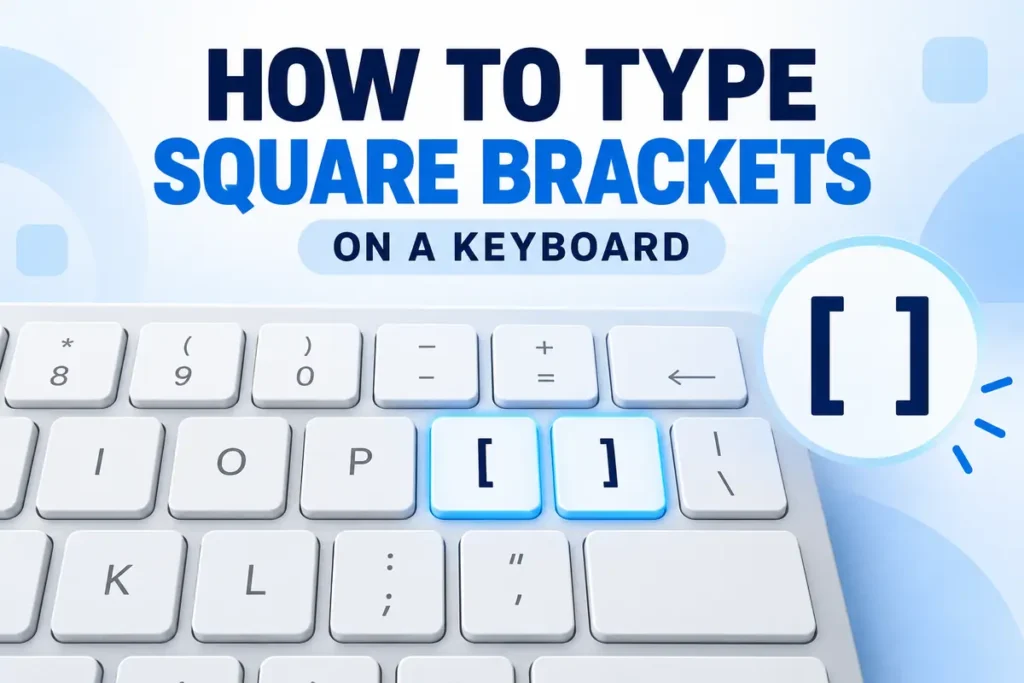
Square brackets are commonly used in programming, mathematics, quotations and technical writing. On a standard US keyboard, the two square bracket keys are located directly to the right of the letter P.
Press the first key to type an opening square bracket [. Press the next key to type a closing square bracket ]. You do not need to hold Shift when using a US keyboard layout.
If the symbols are missing from your keyboard or different characters appear when you press the keys, your device may be using another language or input layout. This guide explains the standard method and several alternatives for Windows, Mac, Chromebook, Linux and mobile devices.
Copy and Paste Square Brackets
You can copy the required character from this table if you need it immediately.
| Symbol | Name | Copy |
|---|---|---|
[ | Left or opening square bracket | [ |
] | Right or closing square bracket | ] |
[ ] | Square bracket pair | [ ] |
Copying the characters provides a quick solution when a key is missing or not responding. However, learning the correct method for your device will be more convenient if you use the symbols regularly.
Where Are the Square Bracket Keys?
On a full-size US QWERTY keyboard, look at the upper-right side of the main typing area. The bracket keys appear immediately after the P key and before the backslash key.
The first key produces:
[when pressed normally{when pressed with Shift
The second key produces:
]when pressed normally}when pressed with Shift
The location is usually the same on US-layout desktop keyboards, mechanical keyboards and laptop keyboards. Compact models may change the size of some keys, but the bracket keys normally remain beside P.
How to Type Square Brackets on Windows
Windows users with a standard US keyboard can enter both characters without using a special shortcut.
Place the cursor where you want the symbol to appear and press the appropriate key:
| Character | Windows keyboard method |
|---|---|
[ | Press the left bracket key |
] | Press the right bracket key |
{ | Press Shift + left bracket key |
} | Press Shift + right bracket key |
Make sure you are pressing the keys next to P rather than the parentheses keys on the number row.
Use Alt Codes on Windows
If the bracket keys are unavailable, Alt codes may work in many Windows applications. This method normally requires a physical numeric keypad.
To enter the opening bracket:
- Turn on Num Lock.
- Hold the Alt key.
- Type
91on the numeric keypad. - Release Alt.
To enter the closing bracket, repeat the process using 93.
| Character | Alt code |
|---|---|
[ | Alt + 91 |
] | Alt + 93 |
The number keys above the letters may not work for Alt codes. Some compact laptops provide an embedded numeric keypad that must be activated with the Fn or Num Lock key.
Use the Windows On-Screen Keyboard
The Windows On-Screen Keyboard can help you locate a symbol or continue typing when a physical key is damaged.
- Press Windows + Ctrl + O.
- Find the opening or closing bracket.
- Click the symbol using your mouse or touchpad.
- Close the on-screen keyboard when finished.
The characters shown on the screen reflect the active input layout. This makes the feature useful when the symbols printed on the physical keyboard do not match the characters being entered.
Use Unicode in Microsoft Word
Microsoft Word supports Unicode conversion through the Alt + X command.
- Type
005B, then press Alt + X for[. - Type
005D, then press Alt + X for].
Place the cursor immediately after the Unicode value before pressing Alt + X. This method may not work in applications that do not support Unicode code conversion.
How to Type Square Brackets on a Mac
A Mac using the US English keyboard layout has dedicated bracket keys in the same general position as a Windows keyboard.
Use the following combinations:
| Character | Mac keyboard method |
|---|---|
[ | Press the left bracket key |
] | Press the right bracket key |
{ | Press Shift + left bracket key |
} | Press Shift + right bracket key |
The two keys should appear immediately to the right of P.
Find the Characters With Keyboard Viewer
Square brackets may require another combination if your Mac uses an international input source. Keyboard Viewer shows the characters assigned to each key.
To use it:
- Open System Settings.
- Select Keyboard.
- Review the available text input or input source options.
- Enable the Input menu in the menu bar if required.
- Open the Input menu and select Show Keyboard Viewer.
- Press Option or Shift to see how the available characters change.
Use the combination displayed for your selected keyboard layout. This is more reliable than following instructions written for another country’s keyboard.
Enter Square Brackets With Unicode Hex Input
Mac users who have enabled Unicode Hex Input can use the Unicode values assigned to the two symbols.
- Hold Option and type
005Bfor[. - Hold Option and type
005Dfor].
Unicode Hex Input must first be added as an input source in the macOS keyboard settings.
How to Type Square Brackets on a Chromebook
A Chromebook with the US English layout uses the two keys next to P.
- Press the left bracket key for
[. - Press the right bracket key for
]. - Hold Shift with these keys for
{and}.
If the output does not match the printed symbols, review the selected input method:
- Open Chromebook Settings.
- Go to Device.
- Select Keyboard and inputs.
- Check the active input language and keyboard layout.
- Select the layout that matches your physical keyboard.
Switching layouts may also change the positions of quotation marks, the @ symbol and other punctuation, so check these characters after making a change.
How to Type Square Brackets on Linux
Most Linux distributions using a US QWERTY layout place the two bracket keys beside P. Press the keys directly for [ and ], or hold Shift to enter { and }.
The combination can be different on German, French, Spanish and other international layouts. Some configurations use the AltGr key with a number or punctuation key.
Open the keyboard or input settings for your Linux distribution and view the selected layout. Confirm that it matches the physical keyboard before changing individual shortcuts or remapping keys.
How to Type Square Brackets on an iPhone
The iPhone keyboard places square brackets on its additional symbols screen.
- Tap a text field to open the keyboard.
- Tap
123. - Tap
#+=. - Select
[or]. - Tap
ABCto return to the letters.
These buttons may look slightly different when you use a third-party keyboard or another input language.
How to Type Square Brackets on Android
The exact location can vary between Android keyboard apps. On many versions of Gboard, you can find the characters by following these steps:
- Tap a text field.
- Tap
?123to open numbers and symbols. - Open the additional symbols panel using the
=\<key or its equivalent. - Tap
[or]. - Return to the alphabetic keyboard when finished.
Some Android keyboards also show related characters when you press and hold a parentheses or brace key.
Square brackets are only one group of characters available through the symbols panel. If you also want to enter smileys and visual characters, read our guide on how to type emojis on a keyboard for instructions covering Windows, Mac, Chromebook and mobile devices.
How International Keyboard Layouts Affect Brackets
The symbols printed on a physical key do not always determine what your computer enters. The operating system interprets each key according to the selected language and layout.
An international keyboard may require:
- AltGr with a number key
- Option with a number key on Mac
- Shift with a punctuation key
- A dedicated language-specific symbol key
A shortcut intended for a US keyboard may therefore produce another character on a French AZERTY or German QWERTZ layout.
Use the keyboard viewer provided by your operating system to find the correct combination. You can temporarily select a US English input layout if you need easier access to programming symbols, but remember that this can move other characters.
What to Do If Square Bracket Keys Are Not Working
A key that produces the wrong symbol is not always physically damaged. The problem may be caused by software, language settings or a modifier key.
Check the Selected Keyboard Layout
Windows users can press Windows + Space to view and switch between installed input languages. Mac users can check the Input menu in the menu bar.
Select the layout that corresponds with the symbols printed on your keyboard.
Test Both Bracket Keys
Open a basic text editor and press each bracket key. If the keys work in the text editor but not in another program, the original application may be using the characters as shortcuts.
Browser extensions, coding applications, design software and games can assign actions to individual keys.
Check Modifier Keys
Press and release Shift, Alt, AltGr, Ctrl, Option and Command. A stuck modifier may change the character or activate an application shortcut instead of entering text.
Also check whether Sticky Keys or another accessibility feature is keeping a modifier active.
Review Keyboard Remapping Software
Gaming keyboards and programmable devices often include software for assigning macros. A saved profile may have changed the function of one or both bracket keys.
Temporarily disable custom profiles and test the keys again. You should also review utilities such as key remappers, macro tools and language-switching applications.
Try Another Keyboard or Device
Connect a second keyboard if one is available. If the brackets work correctly on the replacement, the original keyboard may have a damaged switch, dirty contact or connection problem.
For a laptop, you can also use the on-screen keyboard to determine whether the issue is limited to the built-in hardware.
If pressing the keys produces numbers, letters or unexpected punctuation, follow our guide on how to fix keyboard keys typing the wrong characters to check language layouts, Num Lock, modifier keys and other common causes.
Square Brackets vs Parentheses and Curly Brackets
Different bracket types have different names and purposes.
| Symbols | Name | Common uses |
|---|---|---|
( ) | Parentheses or round brackets | Additional information, calculations and function calls |
[ ] | Square brackets | Arrays, indexes, quoted text and mathematical intervals |
{ } | Braces or curly brackets | Code blocks, sets and structured data |
< > | Angle brackets | HTML tags, placeholders and comparisons |
People sometimes use “brackets” as a general name for all these symbols. Using the specific name is clearer when explaining a keyboard shortcut or writing technical instructions.
Common Uses for Square Brackets
Programming
Square brackets appear in many programming languages. Depending on the language and context, they may represent arrays, lists, indexes, optional values or properties.
Examples include:
colors[0]
users[2]
["red", "blue", "green"]
They are also found in regular expressions, CSS selectors, Markdown links and technical documentation.
Mathematics
In mathematics, square brackets can represent matrices, grouped expressions and closed intervals.
For example, [1, 5] is commonly used for an interval that includes both endpoints. The exact meaning depends on the mathematical subject and surrounding notation.
Quotations and Academic Writing
Writers place square brackets inside quotations when adding clarification or modifying capitalization.
Example:
“She [the project manager] approved the final design.”The bracketed description was added by the writer and was not part of the original quotation.
Square brackets can also contain the word “sic” to show that an unusual spelling or mistake appeared in the original material.
Markdown Links
Markdown uses square brackets around visible link text, followed by a URL inside parentheses.
[Visit the website](https://example.com)This structure is widely used in documentation, content-management platforms and developer tools.
Frequently Asked Questions
Do you need Shift to type square brackets?
No. On a standard US keyboard, press the dedicated keys directly for [ and ]. Holding Shift changes them into { and }.
Where are square brackets on a laptop keyboard?
On most US-layout laptops, the bracket keys are immediately to the right of P. They usually remain in this position even when the laptop does not have a numeric keypad.
What are the Windows Alt codes for square brackets?
Use Alt + 91 for [ and Alt + 93 for ]. Enter the numbers through the numeric keypad while holding Alt.
Why does my bracket key type another character?
Your selected keyboard layout may not match the physical keyboard. A stuck modifier, macro or application shortcut can also change the output.
What are the Unicode values for square brackets?
The opening square bracket [ is U+005B. The closing square bracket ] is U+005D.
Can I copy and paste the symbols?
Yes. Copy [ ] and paste the pair wherever you need it. You can then type your text between the two characters.