
Not Equal Symbol (≠) Copy Paste & Keyboard Shortcuts
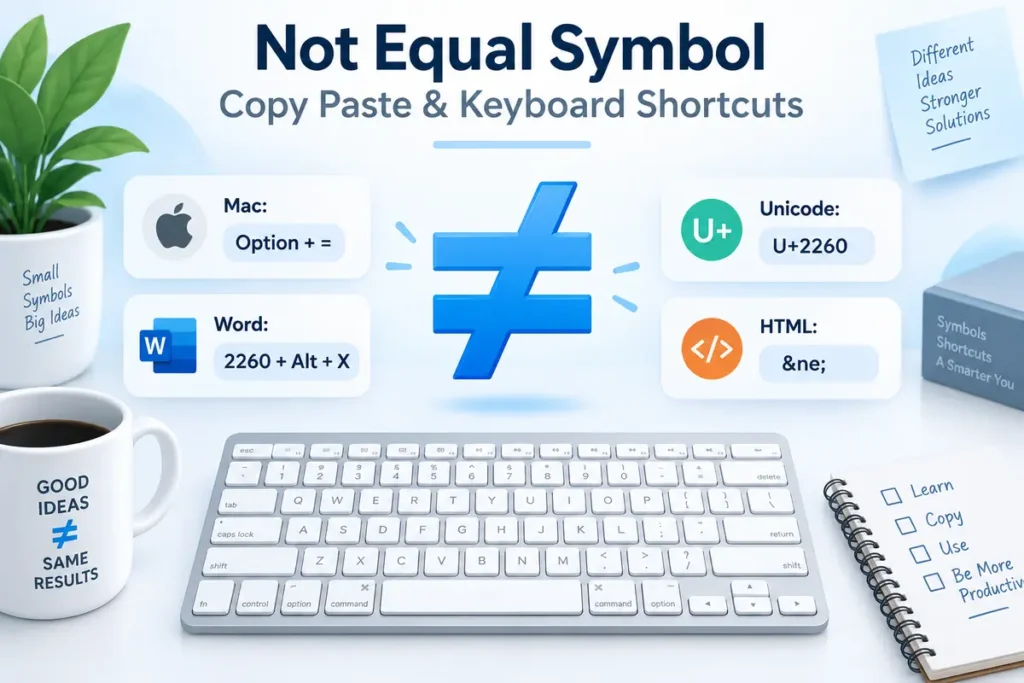
Need the not equal symbol right away? Copy it here:
≠
Quick answer: The not equal symbol ≠ means “is not equal to.” In Microsoft Word, type 2260 and press Alt + X. On a Mac, use Option + =. Its Unicode value is U+2260, and the HTML entity is ≠.
The symbol is widely used in mathematics, algebra, programming, spreadsheets, science, and technical writing. However, the way you type it can differ depending on your device or application.
Copy the Not Equal Symbol
If you only need the character once, copying and pasting is usually the fastest option.
| Symbol | Meaning |
|---|---|
| ≠ | Not equal to |
| = | Equal to |
| ≈ | Approximately equal to |
| ≤ | Less than or equal to |
| ≥ | Greater than or equal to |
Copy this symbol:
≠
Then paste it into your document, message, spreadsheet, browser, or social media post.
If you regularly work with mathematical characters, you may also find our guide to the infinity symbol copy paste useful.
Not Equal Symbol Keyboard Shortcuts
There is no single keyboard shortcut that works everywhere. The best method depends on your operating system and the program you are using.
| Platform | Method |
|---|---|
| Microsoft Word | 2260 + Alt + X |
| Mac | Option + = |
| Windows | Character Map or copy and paste |
| Chromebook | Ctrl + Shift + U → 2260 |
| Linux | Ctrl + Shift + U → 2260 |
| Google Docs | Insert → Special characters |
| Unicode | U+2260 |
| HTML | ≠ |
For most users, Word and Mac have the simplest direct keyboard methods.
How to Type the Not Equal Symbol on Windows
Windows does not provide one universal not-equal shortcut that works in every application. Your best option depends on where you are typing.
| Method | How It Works |
|---|---|
| Microsoft Word | Type 2260, then Alt + X |
| Character Map | Find and copy ≠ |
| Copy and paste | Copy ≠ directly |
| Symbol menu | Use the application’s insert-symbol feature |
Use Character Map
Windows Character Map contains thousands of Unicode characters.
Open Character Map, find ≠, select it, and copy it into the program where you need it.
This is particularly useful if you are working in an application that does not support Word’s Unicode shortcut.
What About Alt Codes?
You may see Alt + 8800 listed on some websites. However, decimal Unicode values and traditional Windows Alt codes do not always work the same way across applications.
For a more reliable approach, use 2260 + Alt + X in Microsoft Word, Character Map, or copy the symbol directly.
How to Type the Not Equal Symbol on Mac
On many Mac keyboard layouts, typing the not equal sign is simple.
| Method | Shortcut |
|---|---|
| Keyboard shortcut | Option + = |
| Character Viewer | Control + Command + Space |
| Copy and paste | Copy ≠ |
Press:
Option + =
The result is:
≠
If the shortcut does not work with your keyboard layout, open Character Viewer, search for “not equal,” and select the symbol.
Character Viewer is also helpful when you need less common mathematical or technical characters.
Not Equal Symbol in Microsoft Word
Microsoft Word provides one of the easiest ways to insert the character.
| Method | Steps |
|---|---|
| Unicode shortcut | 2260 → Alt + X |
| Symbol menu | Insert → Symbol |
| Equation input | \neq or \ne |
| Copy and paste | Paste ≠ |
Use the Unicode Shortcut
Type:
2260
Then press:
Alt + X
Word converts the Unicode value into:
≠
This method is especially helpful on laptops without a numeric keypad.
Use Equation Input
When working with mathematical equations in Word, you may also use:
\neq
or:
\ne
depending on your equation input settings.
This is useful when writing formulas such as:
x ≠ 0
or:
a ≠ b
Not Equal Symbol in Google Docs
Google Docs provides a built-in special-character picker.
| Method | Steps |
|---|---|
| Open menu | Insert → Special characters |
| Search | Type “not equal” |
| Select | Choose ≠ |
| Alternative | Copy and paste ≠ |
You do not need to memorize a code if you only use the symbol occasionally.
Open Insert, choose Special characters, search for “not equal,” and click the symbol.
Not Equal Symbol on iPhone and iPad
Mobile keyboards do not always provide a dedicated key for ≠.
| Method | How It Works |
|---|---|
| Long press | Try holding the = key |
| Copy and paste | Copy ≠ directly |
| Text Replacement | Create your own shortcut |
| Saved note | Keep ≠ somewhere accessible |
On some keyboard layouts, holding the equals sign may reveal additional mathematical symbols. However, this behavior is not identical on every device or keyboard.
For a reliable method, copy:
≠
and paste it where needed.
If you use it frequently, you can create an iPhone text replacement such as:
neq → ≠
Not Equal Symbol on Android
Android keyboards vary between Gboard, Samsung Keyboard, and other keyboard apps.
| Method | How It Works |
|---|---|
| Long press | Try holding = |
| Symbols panel | Check extra mathematical symbols |
| Copy and paste | Paste ≠ |
| Clipboard | Save the symbol for reuse |
Some Android keyboards may place ≠ behind an additional symbols menu rather than a long-press key.
If you cannot find it quickly, copying and pasting is usually the simplest solution.
Not Equal Symbol on Chromebook
ChromeOS supports Unicode input for many special characters.
| Step | What to Press |
|---|---|
| 1 | Ctrl + Shift + U |
| 2 | Type 2260 |
| 3 | Press Enter or Space |
| Result | ≠ |
This Unicode method is useful for many symbols that do not appear directly on a Chromebook keyboard.
Not Equal Symbol on Linux
Many Linux environments use a similar Unicode input method.
| Step | Keyboard Input |
|---|---|
| 1 | Ctrl + Shift + U |
| 2 | Type 2260 |
| 3 | Press Enter |
| Result | ≠ |
The exact behavior may vary slightly depending on the Linux distribution, desktop environment, and application.
Not Equal Symbol Unicode and HTML Codes
The official Unicode code point for the not equal sign is U+2260.
| Code Type | Value |
|---|---|
| Symbol | ≠ |
| Unicode name | NOT EQUAL TO |
| Unicode | U+2260 |
| Decimal value | 8800 |
| HTML entity | ≠ |
| HTML decimal | ≠ |
| HTML hexadecimal | ≠ |
For example:
≠
renders as:
≠
These formats are useful for websites, web applications, documentation, and other digital content.
If you are building a collection of symbol references, our degree symbol keyboard shortcuts guide covers similar Unicode and HTML methods.
Not Equal Symbol in CSS, JavaScript, and Python
Developers can also represent the character through Unicode escape sequences.
| Language | Code |
|---|---|
| CSS | \2260 |
| JavaScript | \u2260 |
| Python | \u2260 |
| Output | ≠ |
These representations are useful when adding mathematical characters to interfaces, apps, or dynamically generated text.
However, the visual symbol ≠ should not be confused with the actual “not equal” operator used by many programming languages.
Not Equal Symbol vs != and <>
This is one of the most important distinctions to understand.
| Symbol / Operator | Common Use |
|---|---|
| ≠ | Mathematics and formatted text |
!= | Programming languages |
<> | Excel, Google Sheets, SQL |
= | Equality or assignment, depending on context |
In mathematics:
5 ≠ 8
means that 5 is not equal to 8.
In many programming languages, you would instead write:
5 != 8
The Unicode character ≠ is usually for display, while != is commonly used as an actual programming operator.
Not Equal in Excel and Google Sheets
Excel and Google Sheets use <> when testing whether two values are different.
| Method | Example |
|---|---|
| Not-equal operator | <> |
| Formula example | =A1<>B1 |
| Display symbol | ≠ |
| Unicode formula | =UNICHAR(8800) |
For example:
=A1<>B1
returns TRUE when the values in A1 and B1 are different.
If you only want to display the actual symbol in a cell, you can copy ≠ or use:
=UNICHAR(8800)
This distinction matters because ≠ is a character, while <> is the comparison operator Excel uses in formulas.
What Does the Not Equal Symbol Mean?
The not equal sign indicates that two values, expressions, or quantities are different.
| Example | Meaning |
|---|---|
| 5 ≠ 3 | 5 is not equal to 3 |
| x ≠ 0 | x cannot equal zero |
| 10 + 2 ≠ 15 | 12 is not equal to 15 |
| a ≠ b | a and b have different values |
The symbol is widely used in algebra, arithmetic, logic, statistics, and other areas of mathematics.
It provides a concise way to state that two expressions do not represent the same value.
Not Equal and Related Math Symbols
Several mathematical symbols look similar but express different relationships.
| Symbol | Name | Example |
|---|---|---|
| = | Equal to | 2 + 2 = 4 |
| ≠ | Not equal to | 4 ≠ 5 |
| ≈ | Approximately equal to | π ≈ 3.14 |
| ≤ | Less than or equal to | x ≤ 10 |
| ≥ | Greater than or equal to | x ≥ 1 |
| ≡ | Identical to / equivalent | Depends on context |
| ≢ | Not identical to | Depends on context |
Using the correct symbol matters in mathematical and technical writing because each one communicates a different relationship.
Other Special Keyboard Symbols
Many useful symbols do not have their own dedicated keyboard keys.
For example, multilingual punctuation can require extra steps on an English keyboard. Our guide to the upside down question mark explains how to copy and type another commonly searched special character.
Learning a few Unicode codes and built-in symbol tools makes it much easier to enter unusual characters across Windows, Mac, mobile devices, and web applications.
Frequently Asked Questions
What is the not equal symbol?
The not equal symbol is ≠. It means that two values or expressions are not equal.
How do I copy and paste the not equal symbol?
Copy this character:
≠
Then paste it using Ctrl + V on Windows or Command + V on Mac.
How do I type the not equal symbol in Microsoft Word?
Type 2260, then press Alt + X. Word converts the code into ≠.
How do I type ≠ on a Mac?
Press Option + = on common Mac keyboard layouts.
What is the Unicode for the not equal symbol?
The Unicode code point is U+2260.
What is the HTML code for ≠?
You can use ≠, ≠, or ≠.
Is ≠ the same as !=?
No. ≠ is the mathematical Unicode character. != is the not-equal operator used by many programming languages.
What does <> mean in Excel?
In Excel and Google Sheets, <> means “not equal to.” For example, =A1<>B1 checks whether two cells contain different values.
Not Equal Symbol Quick Reference
| Need | Use This |
|---|---|
| Copy symbol | ≠ |
| Mac | Option + = |
| Microsoft Word | 2260 + Alt + X |
| Chromebook | Ctrl + Shift + U → 2260 |
| Linux | Ctrl + Shift + U → 2260 |
| Unicode | U+2260 |
| HTML | ≠ |
| Programming | != |
| Excel / Sheets | <> |
If you only need the character once, copying ≠ is the quickest solution. If you use it regularly, learning the shortcut or operator used by your platform will make typing it much faster.