
How to Type Curly Brackets on a Keyboard
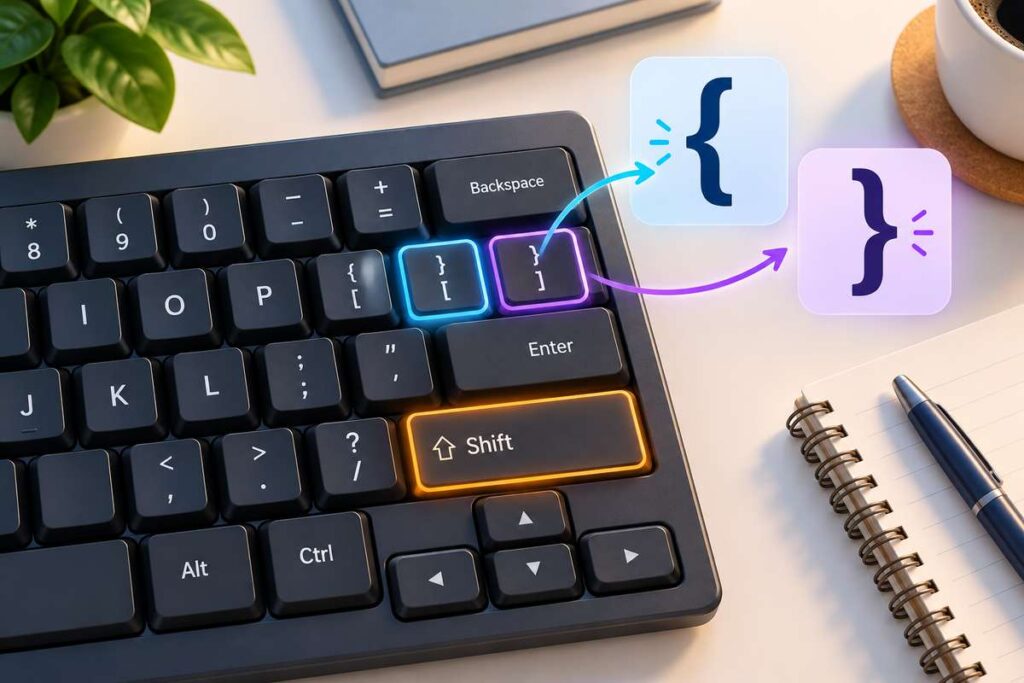
To type curly brackets on a standard US keyboard, press Shift + [ for the opening curly bracket { and Shift + ] for the closing curly bracket }. The square bracket keys are usually located just to the right of the P key.
Curly brackets are small symbols, but they show up in many places. You may need them while writing code, editing JSON, working with CSS, entering mathematical sets, or typing structured text.
The symbols look like this:
Opening curly bracket: {
Closing curly bracket: }
They are also commonly called curly braces.
If you have never typed them before, the shortcut may not be obvious because curly brackets usually share the same physical keys as square brackets.
This guide explains how to type curly brackets on Windows, Mac, and laptops, where to find the keys, what to do if the shortcut does not work, and how curly brackets differ from other bracket symbols.
Curly Brackets Copy and Paste
If you only need the symbols quickly, you can copy them below:
{ }
Individual symbols:
{
}
The opening symbol is often called the left curly bracket or opening curly brace, while the closing symbol is known as the right curly bracket or closing curly brace.
Where Are Curly Brackets on a Keyboard?
On most standard US QWERTY keyboards, curly brackets share keys with square brackets.
Look at the keys directly to the right of the P key.
You should normally see:
[
and
]
Pressing these keys by themselves gives you square brackets.
Holding Shift while pressing them produces curly brackets.
| Symbol | Name | Keyboard Shortcut |
|---|---|---|
{ | Opening curly bracket | Shift + [ |
} | Closing curly bracket | Shift + ] |
[ | Opening square bracket | [ |
] | Closing square bracket | ] |
If you also want to understand the related keys, read our guide on how to type square brackets.
How to Type an Opening Curly Bracket {
Typing the opening curly bracket takes only two keys.
Press and hold the Shift key, then press the left square bracket key [.
The result should be:
{
So the shortcut is:
Shift + [
You can normally use either the left or right Shift key.
How to Type a Closing Curly Bracket }
The closing curly bracket uses the key immediately next to the opening bracket key.
Hold Shift and press the right square bracket key ].
You should get:
}
The shortcut is:
Shift + ]
Once you know where the square bracket keys are located, typing both curly braces becomes much easier.
How to Type Curly Brackets on Windows
On a Windows computer using a standard US keyboard layout, the shortcuts are:
Opening curly bracket {:
Shift + [
Closing curly bracket }:
Shift + ]
These shortcuts usually work in browsers, Microsoft Word, text editors, WordPress, code editors, email applications, and most other programs that accept text input.
However, your active keyboard layout matters.
A physical keyboard may look like a US keyboard while Windows is configured to use another language or regional layout.
When that happens, pressing a key may produce a different character than the one printed on it.
If the shortcuts are producing unexpected symbols, check your current keyboard language before assuming the keys are damaged.
How to Type Curly Brackets on a Laptop
On most laptops, the method is exactly the same as on a desktop keyboard.
Use:
Shift + [ → {
Shift + ] → }
A numeric keypad is not required for the standard shortcut.
Smaller laptops sometimes use more compact keyboard layouts, so the bracket keys may appear closer to the Enter key or be placed slightly differently.
Look for the [ and ] symbols first.
Then hold Shift to type their curly versions.
If several keys are not responding correctly rather than just the bracket keys, our guide to common keyboard problems and fixes can help you identify whether the problem is related to the keyboard, software, drivers, or system settings.
How to Type Curly Brackets on a Mac
On a Mac using a US English keyboard layout, the standard method is also:
Shift + [ → {
Shift + ] → }
The important thing to remember is that Mac keyboard shortcuts can vary when you use a different regional input source.
For example, a keyboard configured for another language may place curly brackets on different keys or require another modifier.
If you cannot find the symbol, check which input source is active on your Mac.
You can also use the macOS Keyboard Viewer to see which character each key will produce.
This is especially useful when using international keyboard layouts.
How to Type Curly Brackets Using Alt Codes
Windows users can also use Alt codes as an alternative method.
For an opening curly bracket:
Alt + 123 → {
For a closing curly bracket:
Alt + 125 → }
This method usually requires a numeric keypad.
To enter an Alt code:
- Make sure Num Lock is active if needed.
- Hold the Alt key.
- Type the number using the numeric keypad.
- Release Alt.
For most users, the Shift shortcut is faster, but Alt codes can be helpful when a particular key is unavailable.
What If Shift + [ or ] Does Not Work?
If the normal curly bracket shortcut does not work, there are a few things worth checking.
Check Your Keyboard Layout
Start by checking the active keyboard language.
Different layouts assign symbols to different physical keys.
For example, US, UK, German, French, Italian, and other keyboards may not place every punctuation character in the same position.
If your keyboard suddenly starts producing the wrong symbols, it may be using a different input layout.
If this problem affects several keys, read our guide on fixing keyboard keys typing wrong characters.
Test the Shift Key
Try typing an uppercase letter.
For example:
Shift + A
If you get:
A
your Shift key is probably working.
If the letter stays lowercase, test the other Shift key.
Test the Bracket Keys
Press the square bracket keys without Shift:
[
]
If one key does not respond, the problem may be with that individual key rather than the shortcut.
Try an On-Screen Keyboard
An on-screen keyboard can help you compare software input with the physical keyboard.
If curly brackets work through the virtual keyboard but not your physical keyboard, the physical key may need further troubleshooting.
Curly Brackets vs Square Brackets
Curly brackets and square brackets are easy to confuse because they often share the same keys.
They are not the same symbols.
| Bracket Type | Symbols | Example |
|---|---|---|
| Parentheses | ( ) | (text) |
| Square brackets | [ ] | [text] |
| Curly brackets | { } | {text} |
| Angle brackets | < > | <text> |
The terminology can also cause confusion.
Curly brackets and curly braces usually mean the same symbols:
{ }
Square brackets are:
[ ]
And parentheses are:
( )
What Are Curly Brackets Used For?
Curly brackets are especially common in technical writing.
Programming
Many programming languages use curly braces to group sections of code.
For example:
{
  message: "Hello"
}
Exactly what the braces mean depends on the programming language.
CSS
CSS uses curly brackets to contain declarations.
For example:
body {
  font-size: 16px;
}
The opening brace starts the declaration block, while the closing brace ends it.
JSON
Curly brackets commonly represent objects in JSON.
Example:
{
  "name": "Alex",
  "age": 25
}
If you work with websites, APIs, or structured data, you will see curly brackets frequently.
Mathematics
In mathematics, curly braces can be used to show a set.
For example:
{1, 2, 3, 4}
This tells the reader that the listed values belong to the same set.
Curly Brackets on Different Keyboard Layouts
One shortcut does not necessarily work on every keyboard in the world.
The familiar:
Shift + [
and
Shift + ]
combination mainly applies to standard US-style layouts.
Other keyboard layouts may use different keys or modifiers such as AltGr.
This is why checking the active language is important if your keyboard does not behave as expected.
The physical symbol printed on a key and the character produced by the operating system do not always match when the selected layout has changed.
Practice Typing Curly Brackets
If you use curly braces frequently for programming or data entry, a little practice can help you type them without looking at the keyboard.
Try typing:
{ }
{} {}
{{ }}
{name}
{value}
{1, 2, 3}
You can also practice combinations such as:
{
  text
}
Typing opening and closing braces together helps build muscle memory for both keys.
Frequently Asked Questions
How do I type { on a keyboard?
On a standard US keyboard, hold Shift and press the left square bracket [ key.
The shortcut is:
Shift + [
How do I type } on a keyboard?
Hold Shift and press the right square bracket ] key.
The shortcut is:
Shift + ]
Where are curly brackets on a keyboard?
On most US QWERTY keyboards, curly brackets share the same keys as square brackets, which are normally located just to the right of the P key.
How do I type curly brackets on a laptop?
On most laptops using a US keyboard layout, press Shift + [** for { and **Shift + ] for }.
Are curly brackets and curly braces the same?
Yes. The terms curly brackets and curly braces generally refer to the same { } symbols.
Why does my keyboard type the wrong symbol?
The active keyboard language or layout may not match your physical keyboard. Check your system’s input settings, especially if several punctuation keys are producing unexpected characters.
Final Answer
On a standard US QWERTY keyboard, typing curly brackets is simple:
Opening curly bracket: Shift + [ → {
Closing curly bracket: Shift + ] → }
If the shortcut does not work, check your keyboard language and test the bracket and Shift keys separately. Different international layouts can place curly braces on different keys, so the correct shortcut may depend on the keyboard layout you are using.